> ## Documentation Index
> Fetch the complete documentation index at: https://docs.augmentcode.com/llms.txt
> Use this file to discover all available pages before exploring further.
# Using Slack as a Tool or Trigger
> Configure the Augment Slack bot for Cosmos Experts — enable Slack as a tool, set up triggers, and interact with agents from Slack channels.
The webapp and mobile aren't the only ways into Cosmos. `@Augment` lives in your Slack workspace and can do most of what a session can: answer codebase questions, open PRs, run scheduled workflows, without anyone ever opening a browser.
## Prerequisites
A tenant admin must connect the Augment Slack app to your workspace before any Expert can use Slack:
* Go to Cosmos [https://cosmos.augmentcode.com/](https://cosmos.augmentcode.com/) → **Settings → Connectors → Browse Connectors → Search for slack**.
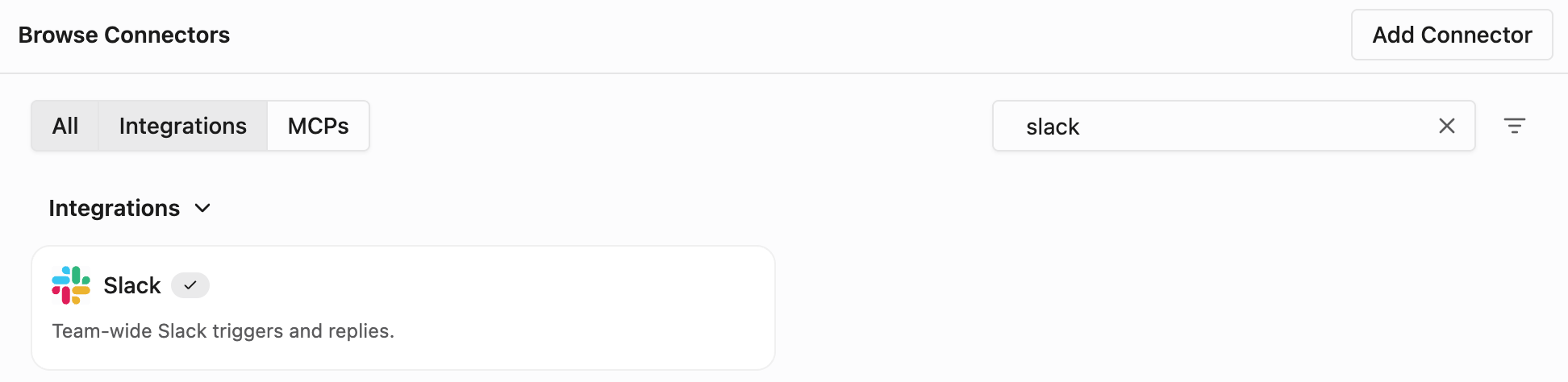 * Click on the **Slack** tile, then click **Connect** to launch the Slack OAuth flow and install the bot into your workspace.
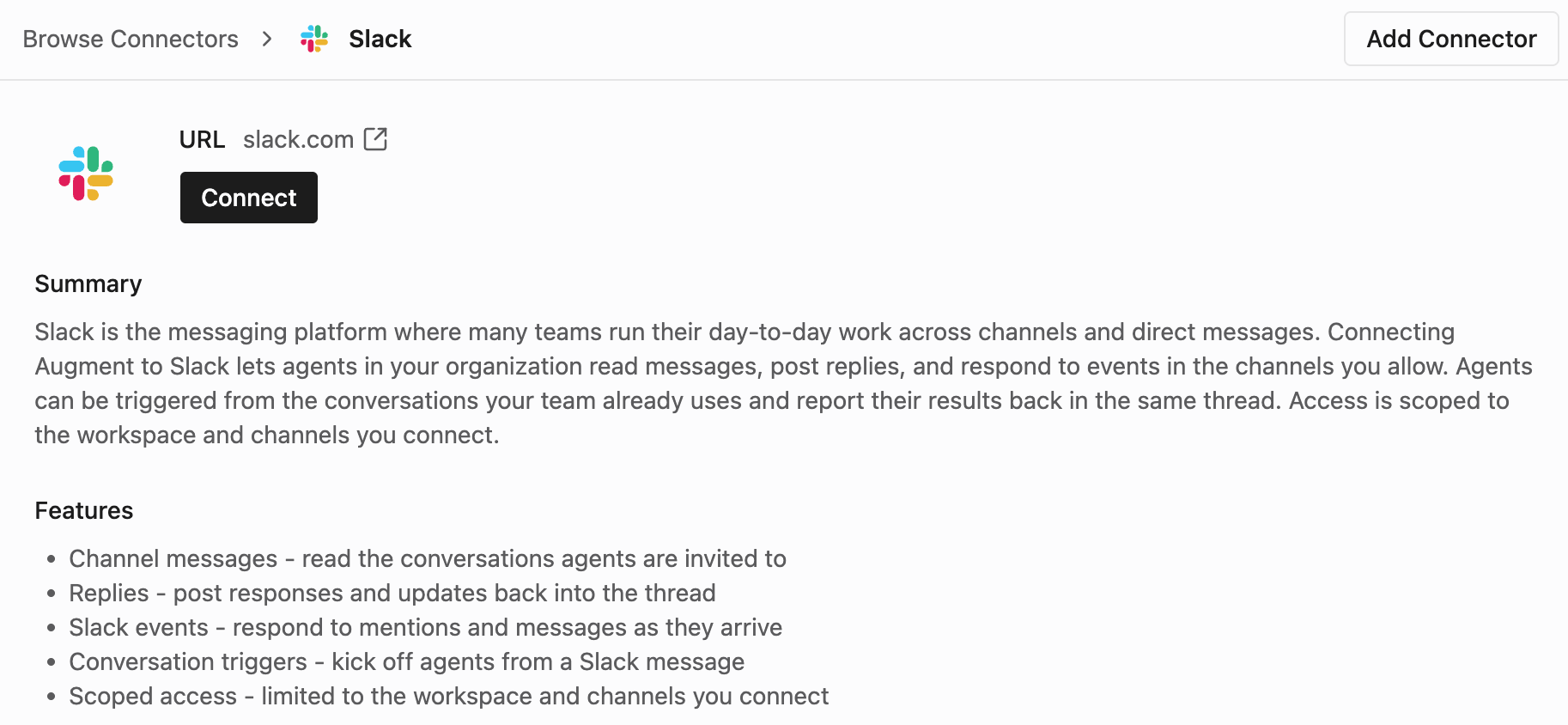 After install, invite the bot into each channel you want the Expert to act in:
```text theme={null}
/invite @Augment
```
The Slack bot must be a member of a channel before it can read history, post messages, or add reactions there.
## Enabling Slack as a Tool on an Expert
In the Expert editor, the **Capabilities** section lists every capability you can grant the Expert. Toggle on **Slack** and save. Cosmos automatically wires up the `slack-api` tool, no further setup required. Once saved, the Expert can call Slack methods including `chat.postMessage`, `chat.update`, `conversations.history`, `conversations.replies`, `reactions.add`, and `users.info`.
Tokens are tenant-scoped: every Expert in your tenant uses the same Augment bot user when calling Slack.
## Configuring Slack Triggers
Slack triggers are added from the **Triggers** section of the Expert editor. Pick **Slack** as the trigger type, set **Event type**, and (optionally) write a **Filter**: a [JSONLogic](https://jsonlogic.com) expression evaluated against the raw Slack event payload. The two most useful event types are:
* `app_mention` — fires only when someone explicitly mentions `@Augment`
* `message` — fires on every message in a channel the bot is in
An `@-mention` is delivered **twice** — once as `app_mention` and once as `message`. Always include an `event.type` clause in your **Filter** to avoid your Expert firing twice on the same message.
### Respond to @Augment Mentions
Pick **Event type** `app_mention` and filter on the channel:
```json theme={null}
{"and": [
{"==": [{"var": "event.channel"}, "C0123456789"]},
{"==": [{"var": "event.type"}, "app_mention"]}
]}
```
### Triage Every New Top-Level Message in a Channel
Pick **Event type** `message`, turn off **Auto-archive sessions created by this trigger**, and use this filter:
```json theme={null}
{"and": [
{"==": [{"var": "event.channel"}, "C0123456789"]},
{"==": [{"var": "event.type"}, "message"]},
{"!": [{"var": "event.thread_ts"}]},
{"!": [{"var": "event.bot_id"}]}
]}
```
The filter above targets a specific channel, only `message` events (avoiding the duplicate `app_mention` delivery), only top-level messages (no `thread_ts`), and skips messages the bot itself posted (no `bot_id`). Turning off auto-archive keeps the session alive across thread replies so follow-up messages reach the same Expert run.
### Common Filter Recipes
```json theme={null}
// Only direct messages to the bot
{"==": [{"var": "event.channel_type"}, "im"]}
// Only messages from a specific user
{"==": [{"var": "event.user"}, "U0123ABCDE"]}
// Only thread replies (not the root message)
{"and": [
{"!!": [{"var": "event.thread_ts"}]},
{"!=": [{"var": "event.thread_ts"}, {"var": "event.ts"}]}
]}
```
## Workflow and Push Slack Notifications
Cosmos workflows can be configured to post results to Slack channels when Experts complete tasks triggered by external events.
**Use cases:**
* **Ticket-to-PR automation**: Linear ticket assigned → agent creates PR → summary posted to Slack
* **CI failure resolution**: CI fails → agent investigates and posts fix PR link to the team channel
* **Scheduled reports**: Daily cron → agent generates a summary → posts to Slack
## Putting the Expert to Work Inside Your Slack Channel
Slack is just a surface, there is no built-in `@Augment` bot persona. To make `@Augment` respond in a channel you need an Expert that:
1. Has the **Slack** capability enabled in its **Capabilities** section.
2. Has an `app_mention` trigger configured (see [Respond to @Augment Mentions](#respond-to-augment-mentions) above) that scopes the Expert to the channels you want it active in.
3. Has a system prompt that tells it how to behave when mentioned (e.g. "answer codebase questions in-thread", "open a PR that fixes the issue", etc.).
Then `/invite @Augment` into each channel you want to use it from. Once invited, mentioning `@Augment` will fire the trigger and start an Expert session that posts back in-thread.
What it actually does in there is whatever its system prompt tells it to do.
### Known Limitations
| Limitation | Details |
| -------------------- | ------------------------------------------------------------------------------------------------------------------------------------------------------------------------ |
| **Bot-owned agents** | Agents created via Slack are owned by the bot user, not the triggering Slack user. The Slack thread is the primary UI, you won't see "your" agent in the Cosmos web app. |
## Disabling Slack Access
You can scale back Slack access at three levels, from least to most disruptive:
1. **Remove a single trigger.** Delete the trigger row from the Expert editor and save. The Expert keeps the `slack-api` tool but no longer wakes up on that event.
2. **Remove the Slack capability.** Toggle off **Slack** in the Expert's **Capabilities** section. The Expert loses the `slack-api` tool and any remaining Slack triggers will be rejected when you save.
3. **Disconnect the workspace.** From **Settings → Connectors → Slack → Manage** → **Disconnect**, or remove the Augment Slack app from your workspace's **Apps → Manage** page. This revokes the bot token for every Expert in the tenant.
After install, invite the bot into each channel you want the Expert to act in:
```text theme={null}
/invite @Augment
```
The Slack bot must be a member of a channel before it can read history, post messages, or add reactions there.
## Enabling Slack as a Tool on an Expert
In the Expert editor, the **Capabilities** section lists every capability you can grant the Expert. Toggle on **Slack** and save. Cosmos automatically wires up the `slack-api` tool, no further setup required. Once saved, the Expert can call Slack methods including `chat.postMessage`, `chat.update`, `conversations.history`, `conversations.replies`, `reactions.add`, and `users.info`.
Tokens are tenant-scoped: every Expert in your tenant uses the same Augment bot user when calling Slack.
## Configuring Slack Triggers
Slack triggers are added from the **Triggers** section of the Expert editor. Pick **Slack** as the trigger type, set **Event type**, and (optionally) write a **Filter**: a [JSONLogic](https://jsonlogic.com) expression evaluated against the raw Slack event payload. The two most useful event types are:
* `app_mention` — fires only when someone explicitly mentions `@Augment`
* `message` — fires on every message in a channel the bot is in
An `@-mention` is delivered **twice** — once as `app_mention` and once as `message`. Always include an `event.type` clause in your **Filter** to avoid your Expert firing twice on the same message.
### Respond to @Augment Mentions
Pick **Event type** `app_mention` and filter on the channel:
```json theme={null}
{"and": [
{"==": [{"var": "event.channel"}, "C0123456789"]},
{"==": [{"var": "event.type"}, "app_mention"]}
]}
```
### Triage Every New Top-Level Message in a Channel
Pick **Event type** `message`, turn off **Auto-archive sessions created by this trigger**, and use this filter:
```json theme={null}
{"and": [
{"==": [{"var": "event.channel"}, "C0123456789"]},
{"==": [{"var": "event.type"}, "message"]},
{"!": [{"var": "event.thread_ts"}]},
{"!": [{"var": "event.bot_id"}]}
]}
```
The filter above targets a specific channel, only `message` events (avoiding the duplicate `app_mention` delivery), only top-level messages (no `thread_ts`), and skips messages the bot itself posted (no `bot_id`). Turning off auto-archive keeps the session alive across thread replies so follow-up messages reach the same Expert run.
### Common Filter Recipes
```json theme={null}
// Only direct messages to the bot
{"==": [{"var": "event.channel_type"}, "im"]}
// Only messages from a specific user
{"==": [{"var": "event.user"}, "U0123ABCDE"]}
// Only thread replies (not the root message)
{"and": [
{"!!": [{"var": "event.thread_ts"}]},
{"!=": [{"var": "event.thread_ts"}, {"var": "event.ts"}]}
]}
```
## Workflow and Push Slack Notifications
Cosmos workflows can be configured to post results to Slack channels when Experts complete tasks triggered by external events.
**Use cases:**
* **Ticket-to-PR automation**: Linear ticket assigned → agent creates PR → summary posted to Slack
* **CI failure resolution**: CI fails → agent investigates and posts fix PR link to the team channel
* **Scheduled reports**: Daily cron → agent generates a summary → posts to Slack
## Putting the Expert to Work Inside Your Slack Channel
Slack is just a surface, there is no built-in `@Augment` bot persona. To make `@Augment` respond in a channel you need an Expert that:
1. Has the **Slack** capability enabled in its **Capabilities** section.
2. Has an `app_mention` trigger configured (see [Respond to @Augment Mentions](#respond-to-augment-mentions) above) that scopes the Expert to the channels you want it active in.
3. Has a system prompt that tells it how to behave when mentioned (e.g. "answer codebase questions in-thread", "open a PR that fixes the issue", etc.).
Then `/invite @Augment` into each channel you want to use it from. Once invited, mentioning `@Augment` will fire the trigger and start an Expert session that posts back in-thread.
What it actually does in there is whatever its system prompt tells it to do.
### Known Limitations
| Limitation | Details |
| -------------------- | ------------------------------------------------------------------------------------------------------------------------------------------------------------------------ |
| **Bot-owned agents** | Agents created via Slack are owned by the bot user, not the triggering Slack user. The Slack thread is the primary UI, you won't see "your" agent in the Cosmos web app. |
## Disabling Slack Access
You can scale back Slack access at three levels, from least to most disruptive:
1. **Remove a single trigger.** Delete the trigger row from the Expert editor and save. The Expert keeps the `slack-api` tool but no longer wakes up on that event.
2. **Remove the Slack capability.** Toggle off **Slack** in the Expert's **Capabilities** section. The Expert loses the `slack-api` tool and any remaining Slack triggers will be rejected when you save.
3. **Disconnect the workspace.** From **Settings → Connectors → Slack → Manage** → **Disconnect**, or remove the Augment Slack app from your workspace's **Apps → Manage** page. This revokes the bot token for every Expert in the tenant.